
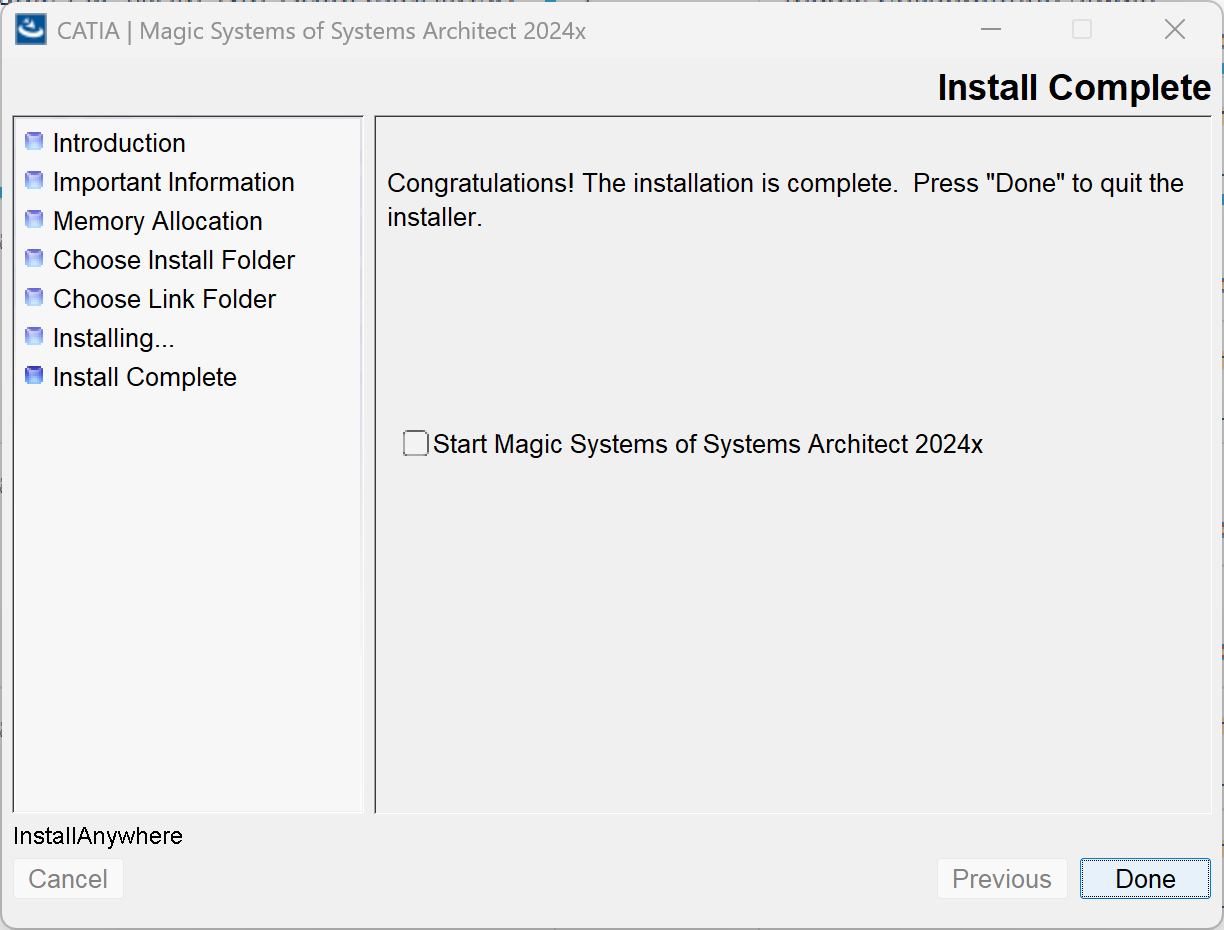
9. Install Complete
-
You’ll see “Install Complete.”
10. Run the Application
-
Select Start Magic Systems of Systems Architect 2024x
-
Select Done
Students enrolled in a SET Academy course should follow the steps in this installation guide to download and install Magic Systems of Systems Architect 2024x on their own computers. By walking through each screen and selecting the default or custom options as needed, you’ll have the software correctly installed and ready for use in class activities and assignments. Completing the setup on your personal equipment ensures you’re familiar with the tool and can participate fully in exercises anytime.
Go to this DigitalWERX Dropbox folder:
https://www.dropbox.com/t/vPVpi8GItCJQ9is0 (download only)
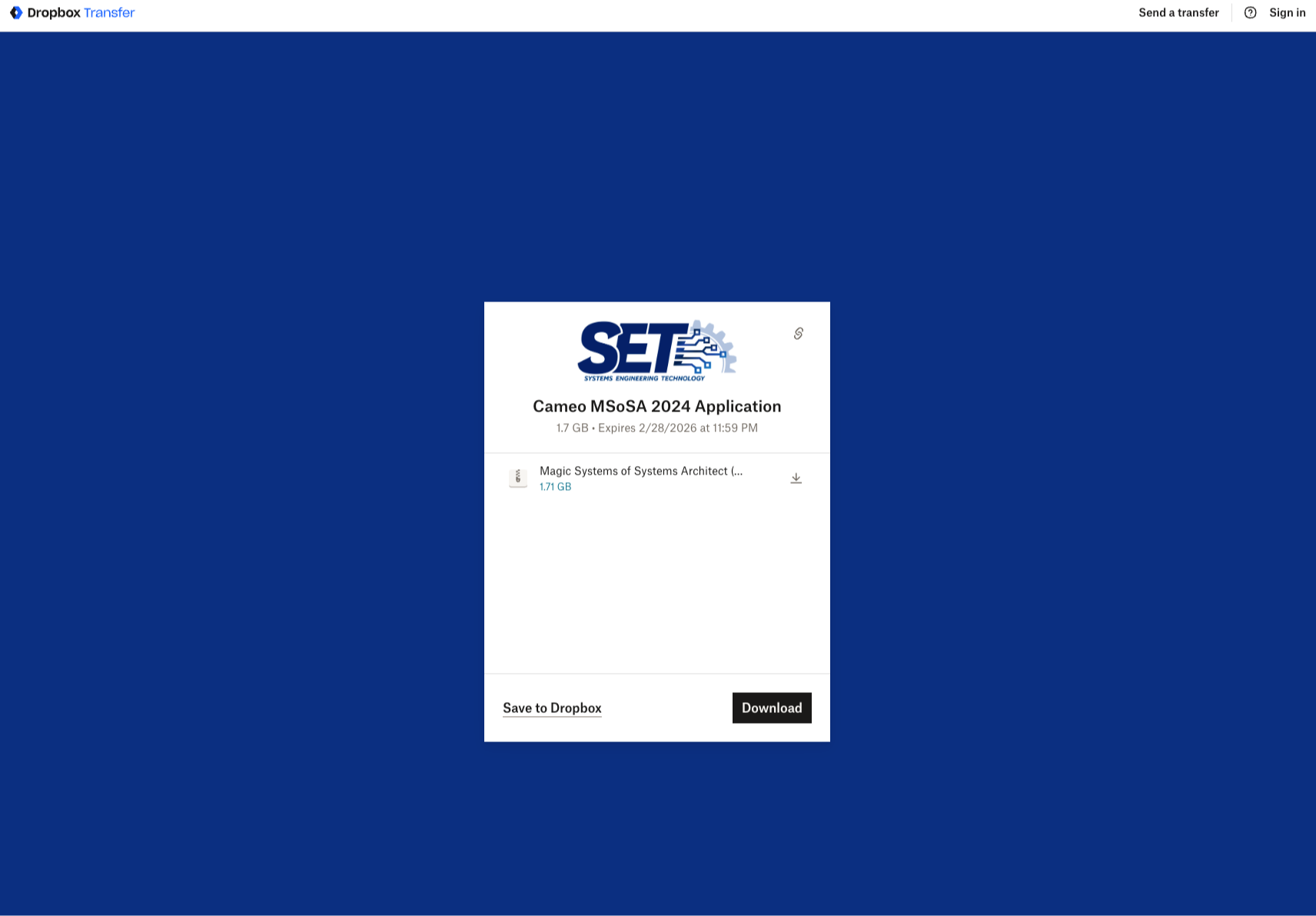
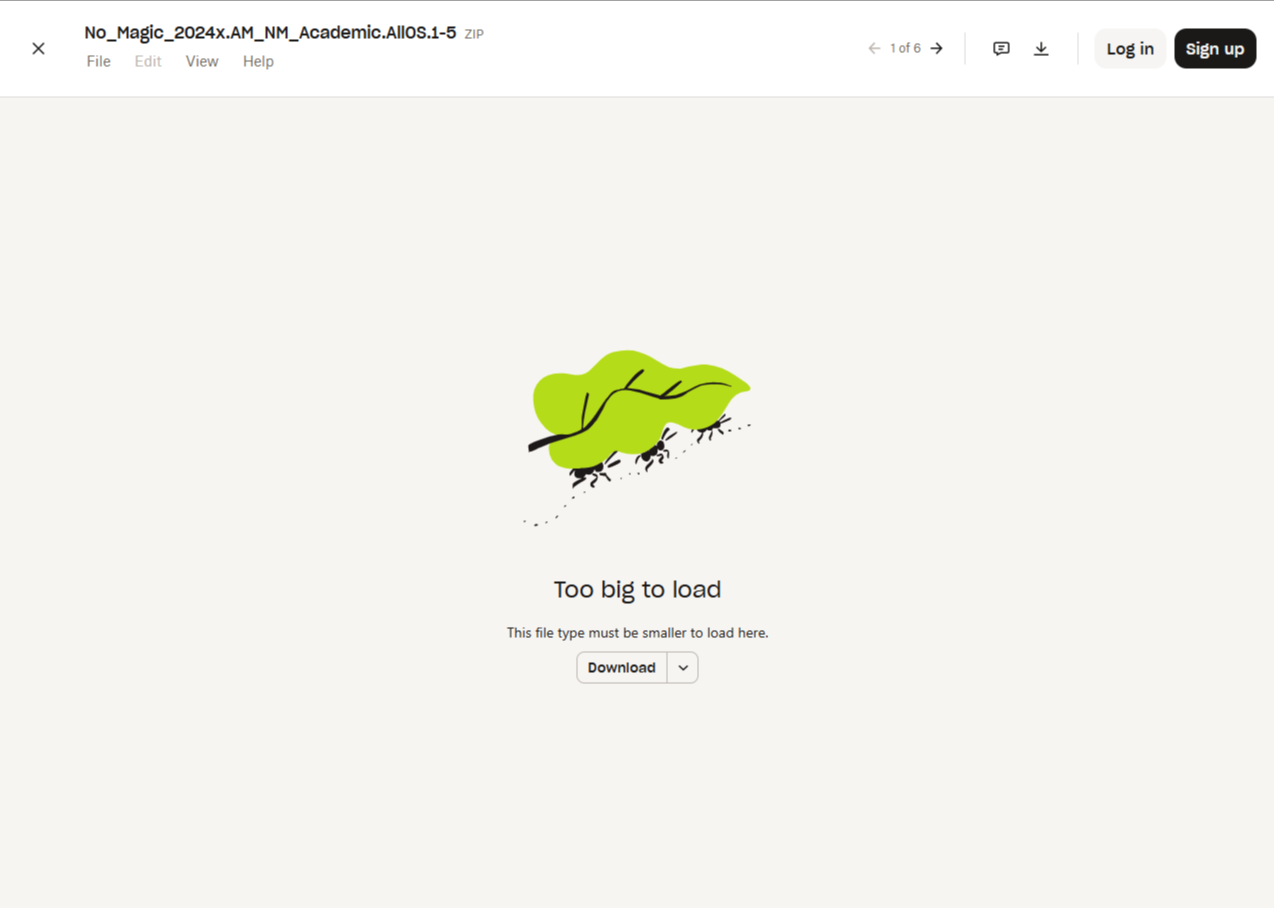
Once the zip volumes have finished downloading, right-click on the zip.
Choose Extract All… or use your preferred extraction tool.
After extraction, open the folder.
Inside, locate the installer file:
Magic_Systems_of_Systems_Architect_2024x_win64.exe
Double-click Magic_Systems_of_Systems_Architect_2024x_win64.exe to start the installation.
Follow the on-screen instructions and continue the guide below to complete setup.
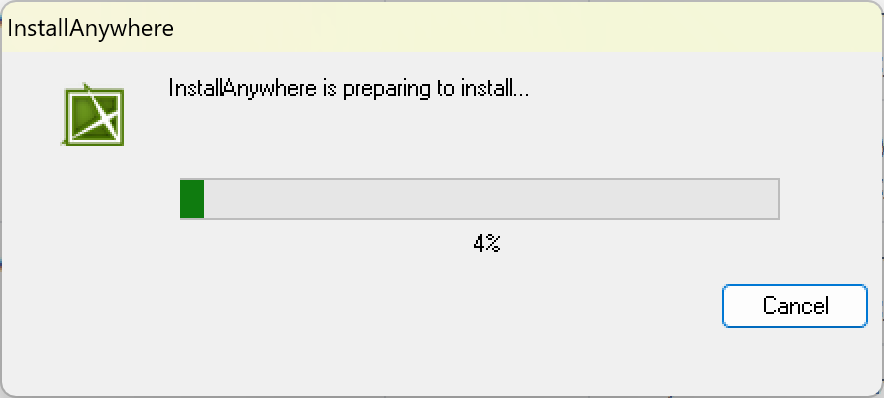
Double-click the downloaded .exe installer.
Wait while InstallAnywhere prepares the installation.
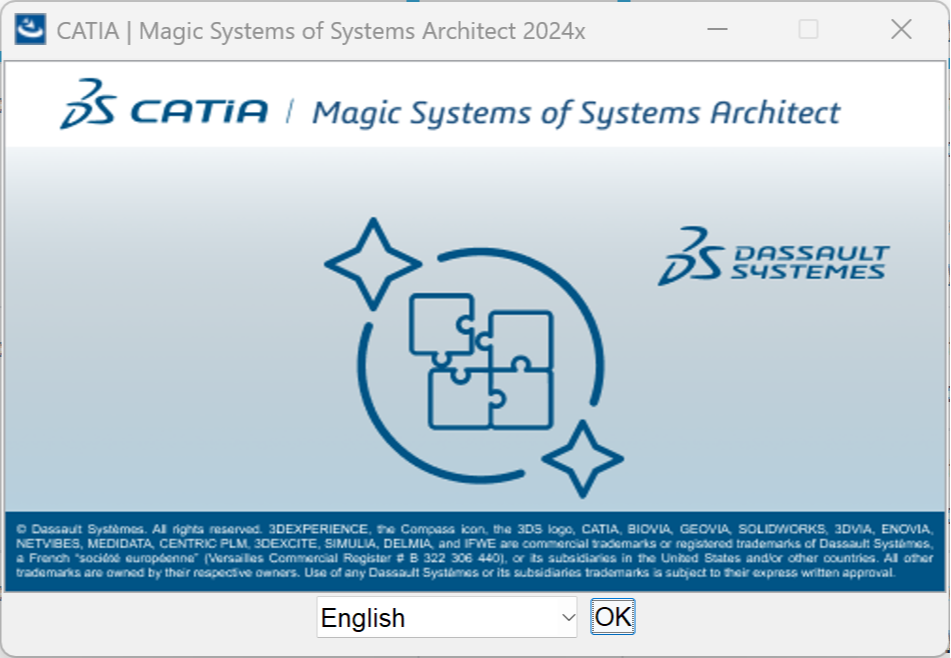
In the drop-down menu, pick your preferred language.
Click OK / Next.
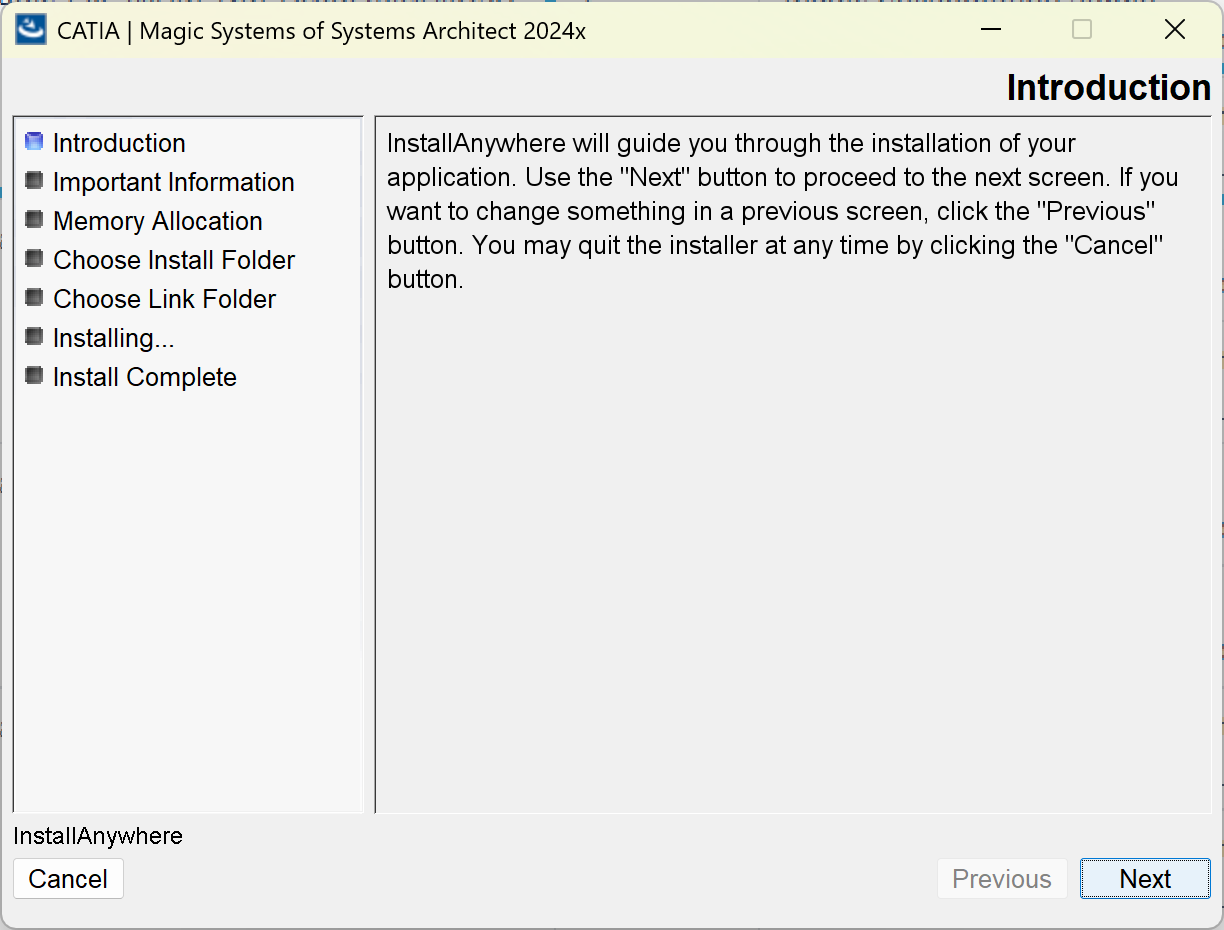
The “Introduction” window appears.
Review the summary and click Next.
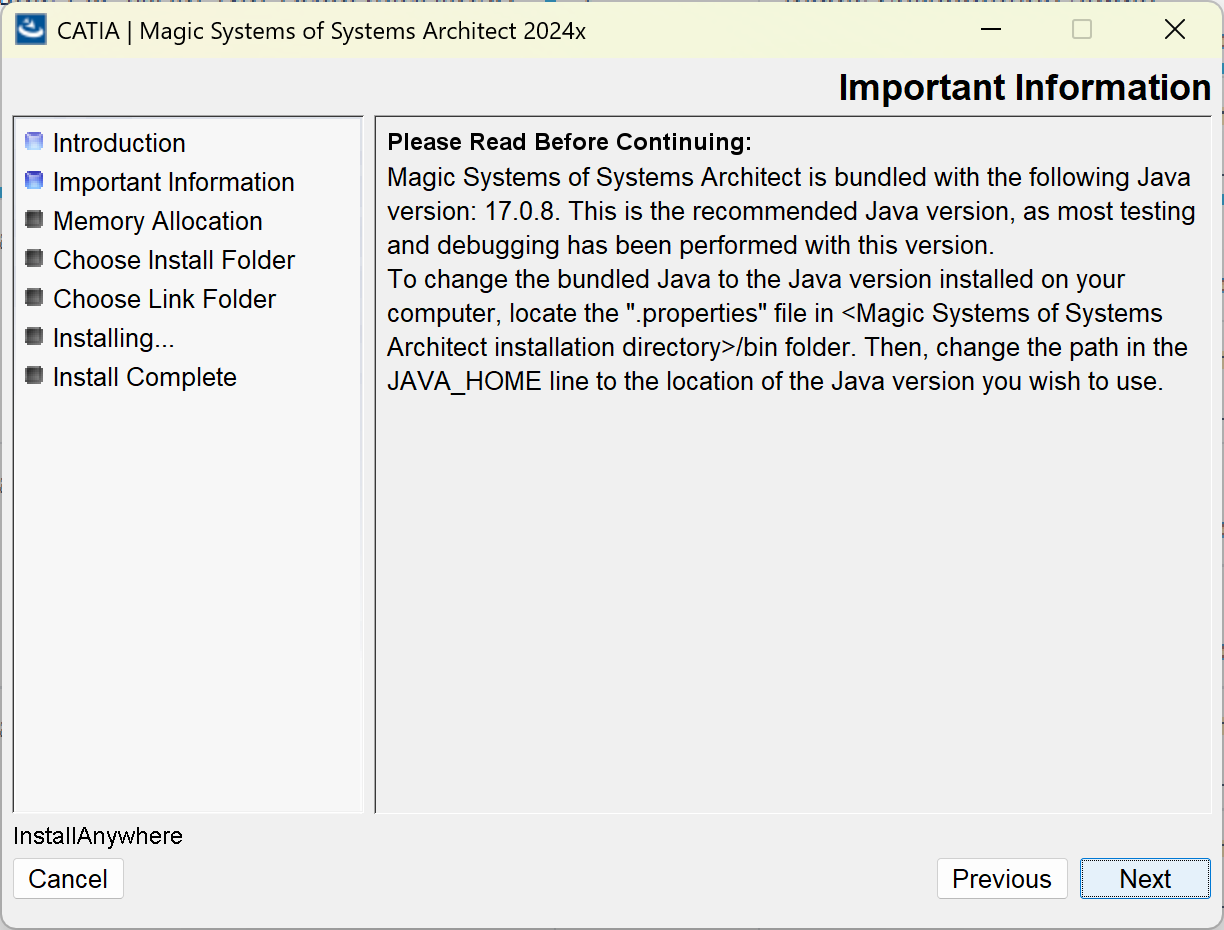
Read the license/important information text.
Click Next to continue.
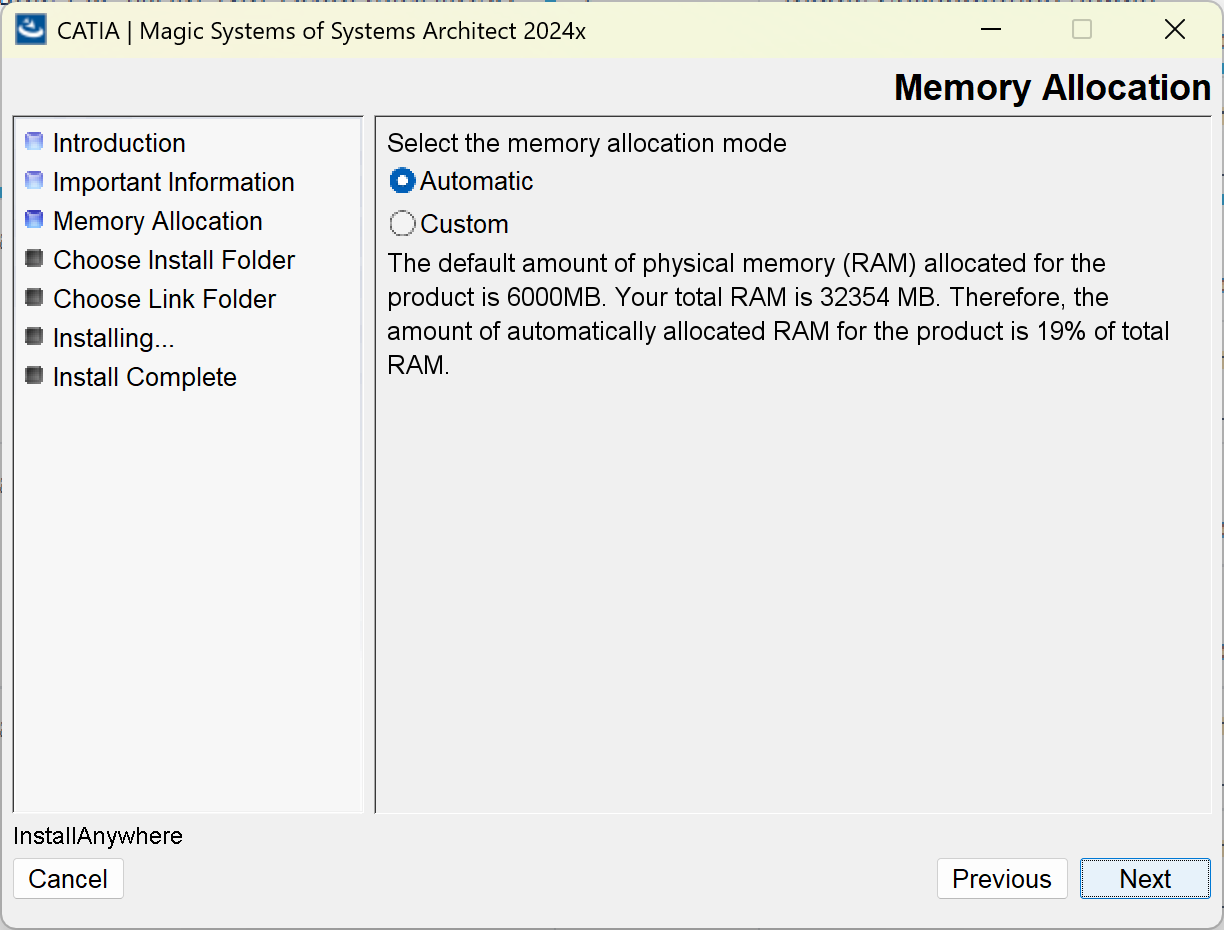
Accept the default memory allocation, or choose Custom to set your own values.
Click Next.
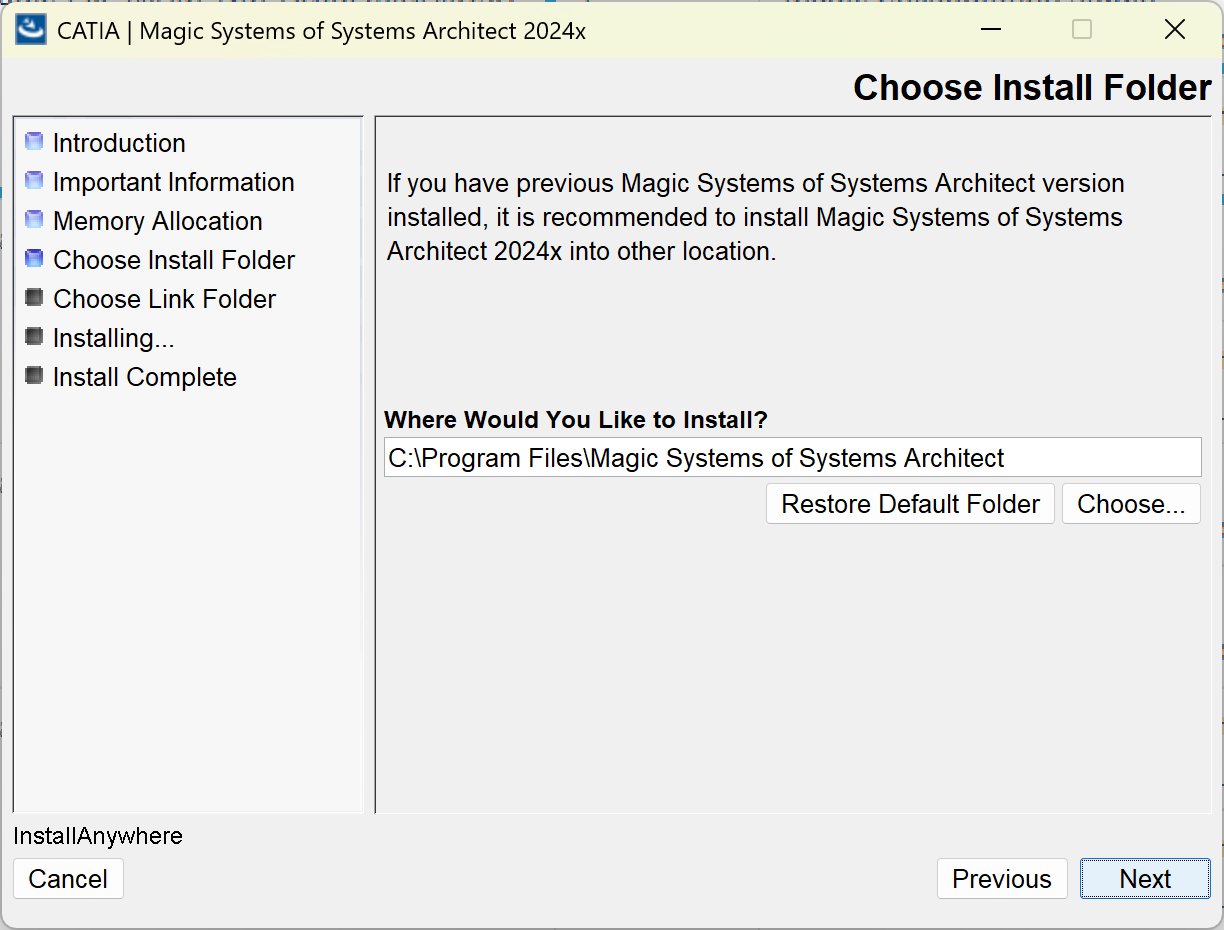
The default path is shown (e.g., C:\Program Files\...).
Click Next to accept, or Choose to select a different folder.
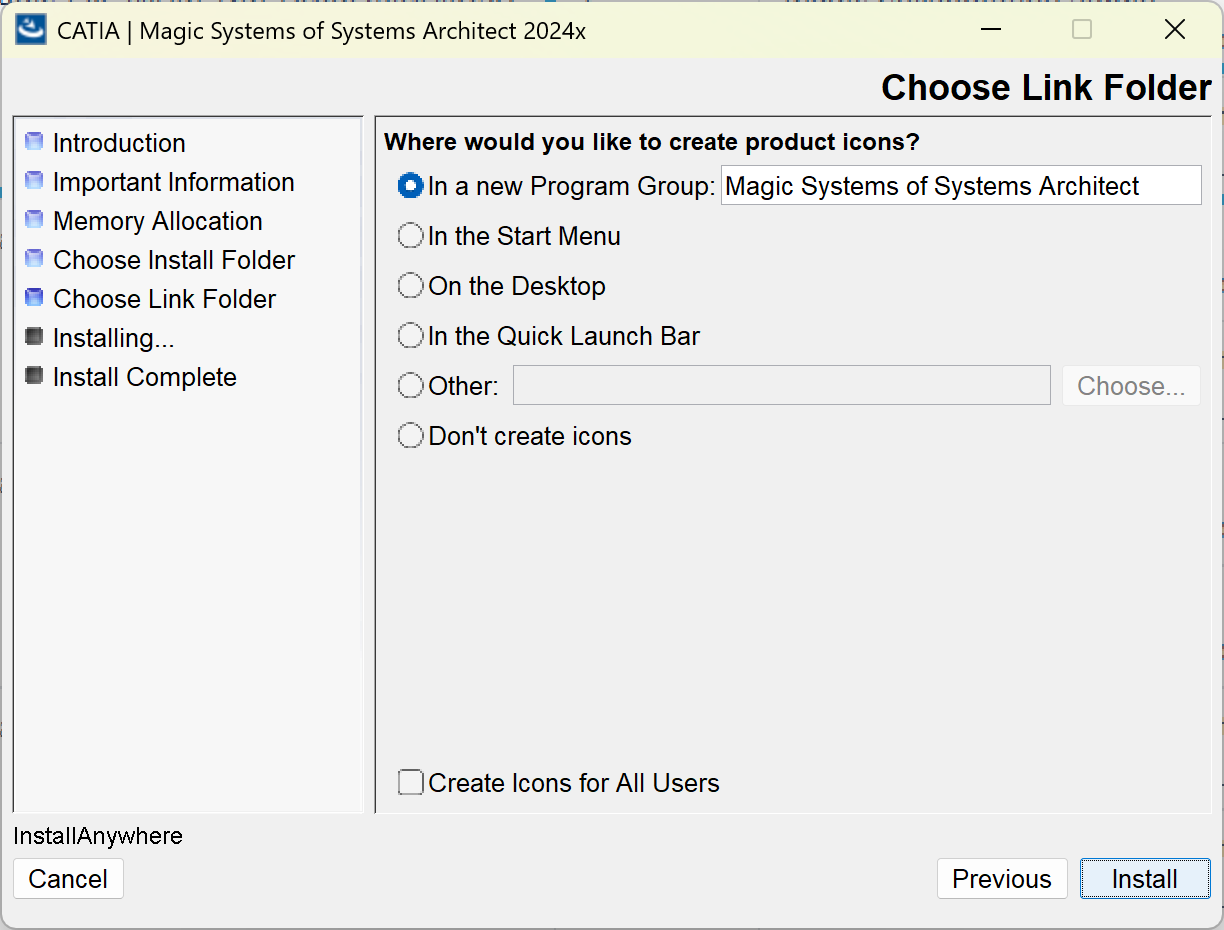
Choose where program shortcuts will be created.
Click Install.
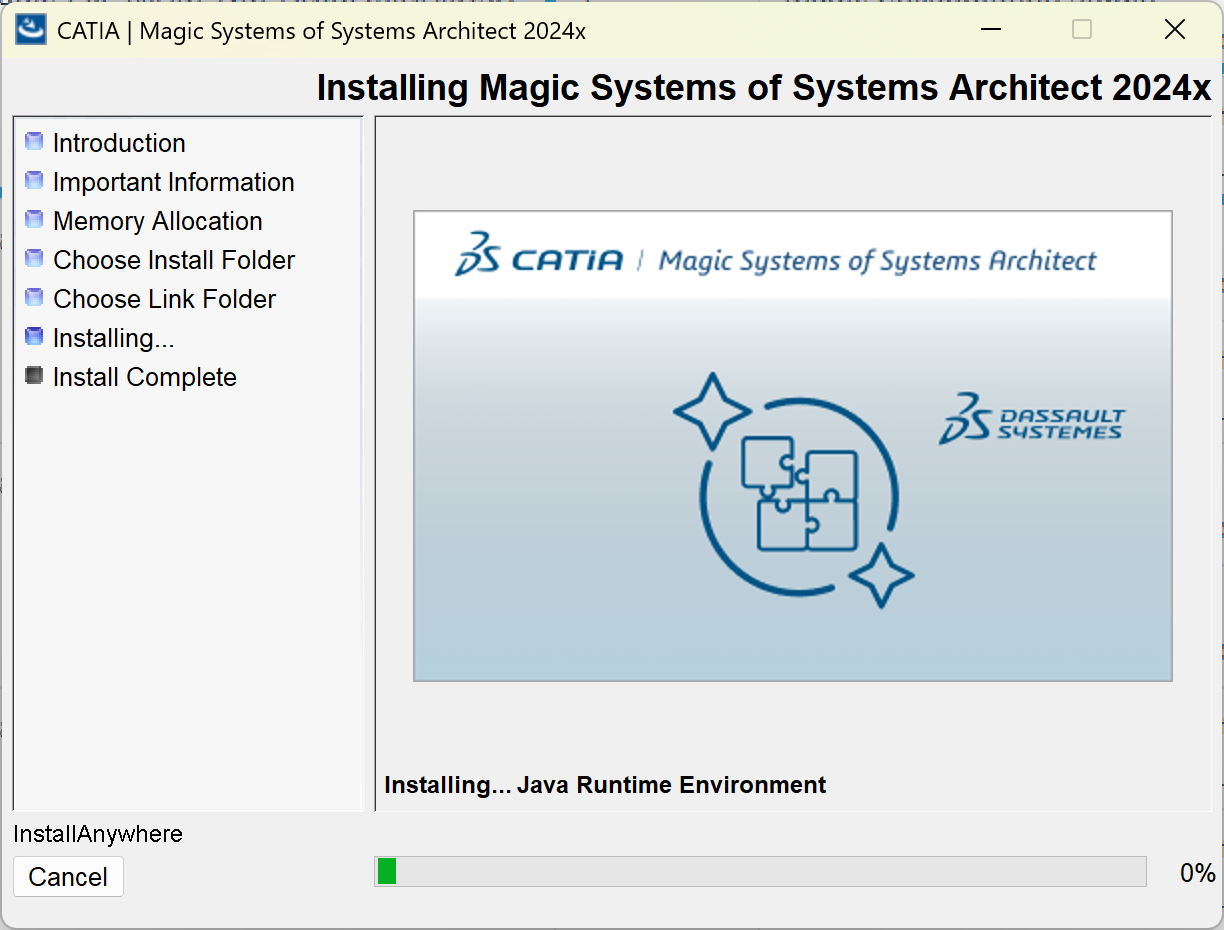
The installer copies files and configures components.
Wait until the progress bar completes.

Get started today before this once in a lifetime opportunity expires.